Publish Docker images to Amazon ECR
Docker Login
Before interacting with AWS, ensure that Docker is running and log in to your account (Docker Hub):
docker login -u <your_username>AWS CLI Installation and Configuration
To manage AWS resources from your terminal, you need the official Command Line Interface.
Go to https://docs.aws.amazon.com/cli/latest/userguide/getting-started-install.html and install the AWS CLI.
Run the following command to confirm it was installed correctly:
aws --versionPermissions configuration (IAM)
To push images to ECR, you need a user with the appropriate permissions. Go to the AWS Console, navigate to IAM > Users, and create a user with the following policy:
AmazonECS_FullAccessAmazonEC2ContainerRegistryPowerUser
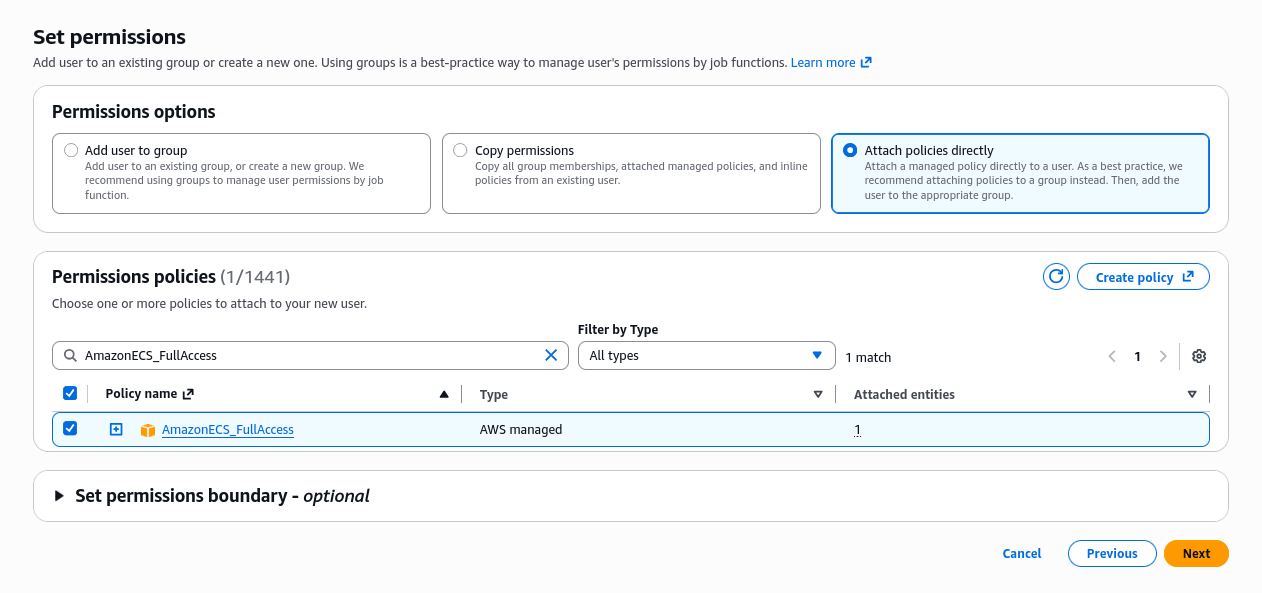
Then, generate an Access Key (under Security Credentials) for CLI access.
Link AWS with your terminal
Run the configuration command and paste your credentials when prompted:
aws configure- AWS Access Key ID: [Your ID]
- AWS Secret Access Key: [Your secret]
- Default region name: (e.g., us-east-1)
- Default output format: (You can leave this blank by pressing Enter)
Amazon Elastic Container Registry (ECR)
Amazon ECR is a fully managed Docker container registry provided by AWS that makes it easy to store, manage, and deploy container images. It is the AWS ecosystem's private equivalent to Docker Hub.
Create a repository
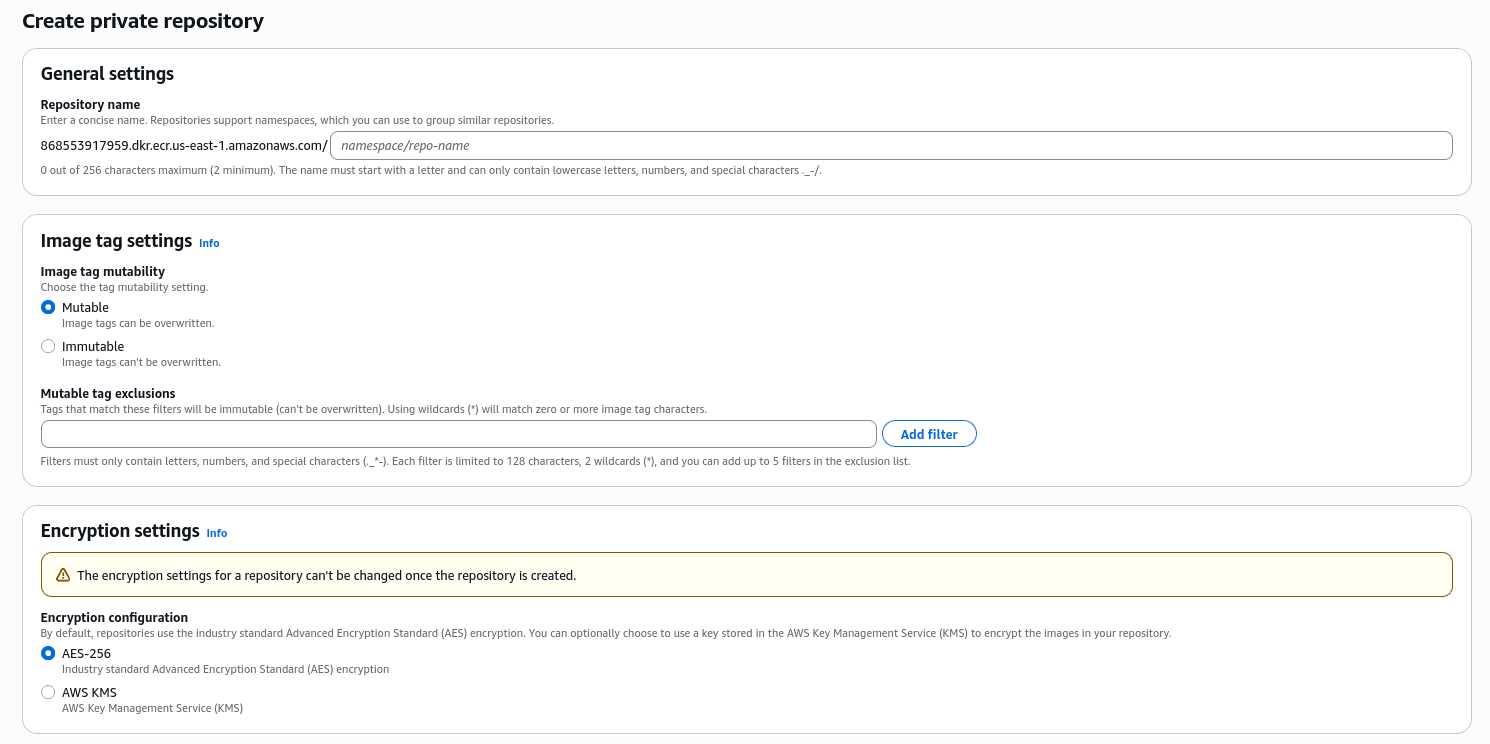
You can create it via the web console by searching for ECR > Repositories > Create repository.
Pushing the image to Amazon ECR
Authenticate Docker with AWS
You must authorize Docker to communicate with your private AWS repository. The following command generates a temporary password and passes it automatically to Docker:
aws ecr get-login-password --region <region_name> | docker login --username AWS --password-stdin <aws_account_id>.dkr.ecr.<region_name>.amazonaws.com/<repo_name>You can find your repository URI in the ECR console. It looks similar to: 168353917959.dkr.ecr.us-east-1.amazonaws.com/repo
Build the image
Use your project's Dockerfile to generate the image. It is essential that the image name (tag) matches your AWS repository URI.
docker build -t <repository_uri>:<tag> .Push the image
Finally, upload the image to the AWS cloud:
docker push <repository_uri>:<tag>Example:
docker build -t 168523927153.dkr.ecr.us-east-1.amazonaws.com/repo:latest .
docker push 168523927153.dkr.ecr.us-east-1.amazonaws.com/repo:latest
Final verification
Once the upload process is complete, you will be able to see the list of available images within your repository in the AWS Console.
Comments